EZYPATTERNDXF pattern tools
Runs in your browser
User guide

User guides

Written for first-time users: real screenshots with numbered marks, one step at a time. Read them here or download the PDF.

Pattern Viewer

Pattern Viewer — User Guide

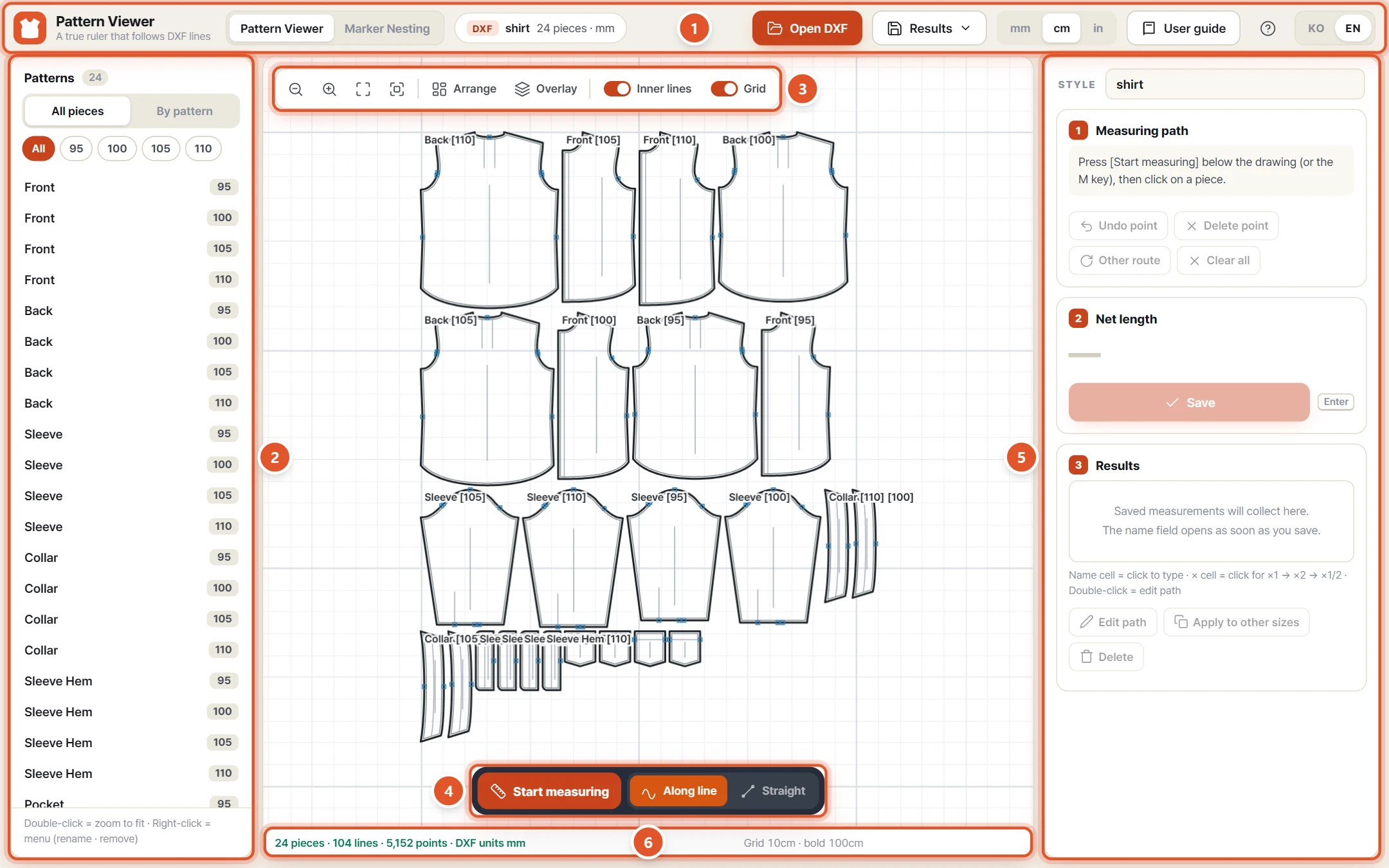
Step-by-step, with screenshots: open a DXF pattern, measure curve and straight lengths along the lines, overlay sizes to compare, and save the results to Excel or CSV.

  1. Screen layout
  2. Open a DXF file
  3. Patterns list — show only what you need
  4. Viewing the drawing — zoom, fit, arrange
  5. Measure along a line (armhole example)
  6. Fixing points and the path
  7. Measure a straight distance (chest width 1 cm below the underarm)
  8. Managing results — name, multiplier, edit, delete
  9. Apply to all other sizes at once
  10. Compare sizes by overlaying them
  11. Save and export
  12. Units, language and help
Marker Nesting

Marker Nesting — User Guide

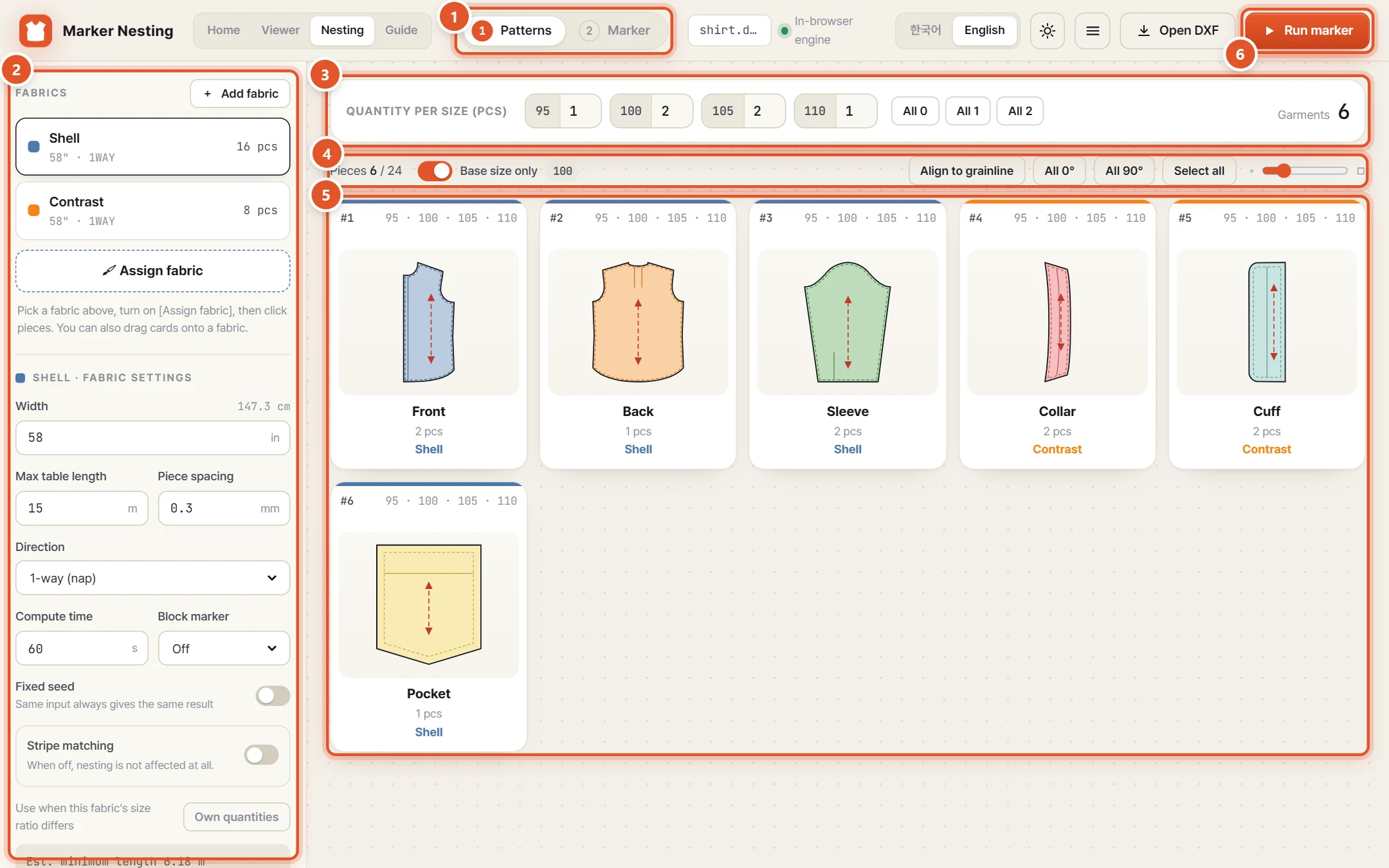
Step-by-step, with screenshots: auto-nest DXF patterns per fabric and get marker length, efficiency and yardage per garment — from quantities and fabric width to stripe matching, unfolding and export.

  1. Screen layout
  2. Open a DXF file
  3. Add fabrics and assign pieces
  4. Fabric settings (width, direction, time)
  5. Enter quantities per size
  6. Work with piece cards and View large
  7. Right-click menu (unfold, mirror, exclude)
  8. Stripe matching
  9. Run the marker
  10. Read the results (yardage, efficiency, layout)
  11. Save your work (images, DXF, project)
  12. Engine status, language, theme and units

Practice DXFThe practice DXF is the shirt pattern shown in this guide (sizes 95 · 100 · 105 · 110).